First: keep your project archive organized
Keep one main folder, such as Ableton Projects, with a subfolder for each project. Store each .als file together with Samples, Backup and the other related files. If paths are scattered or the archive is incomplete, no reader — including this one — can give you a truly faithful picture.
Set library
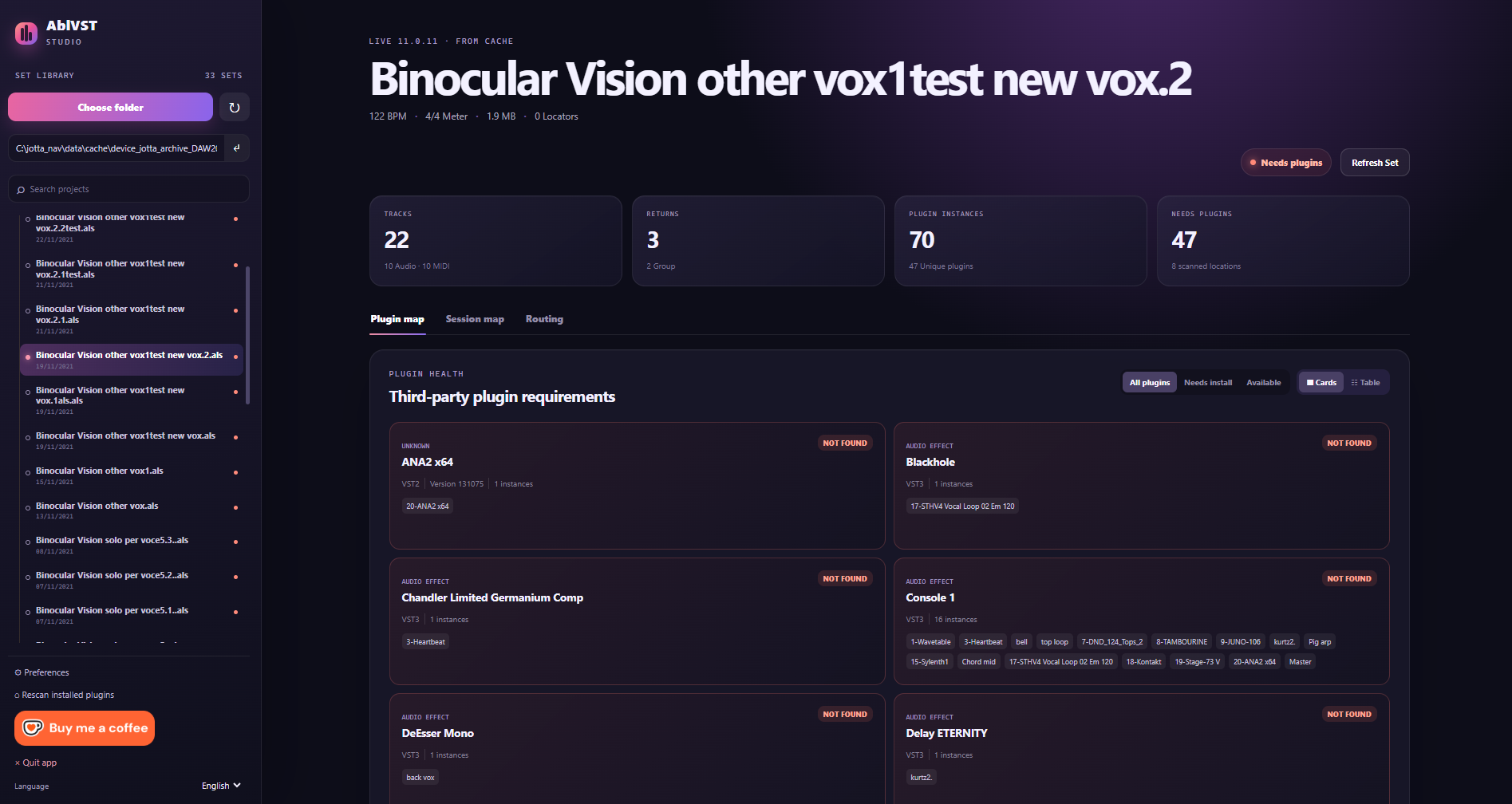
Scan the main folder and AblVST Studio will find your Sets, showing only the newest version or, if you prefer, every version. It remembers the last folder and Set you inspected, so you can pick up where you left off.
Technical Set overview
You immediately see the Ableton Live version, BPM, time signature and file size. Below that is the complete project inventory: audio and MIDI tracks, groups, Returns, Master, clips and devices.
Plugin map
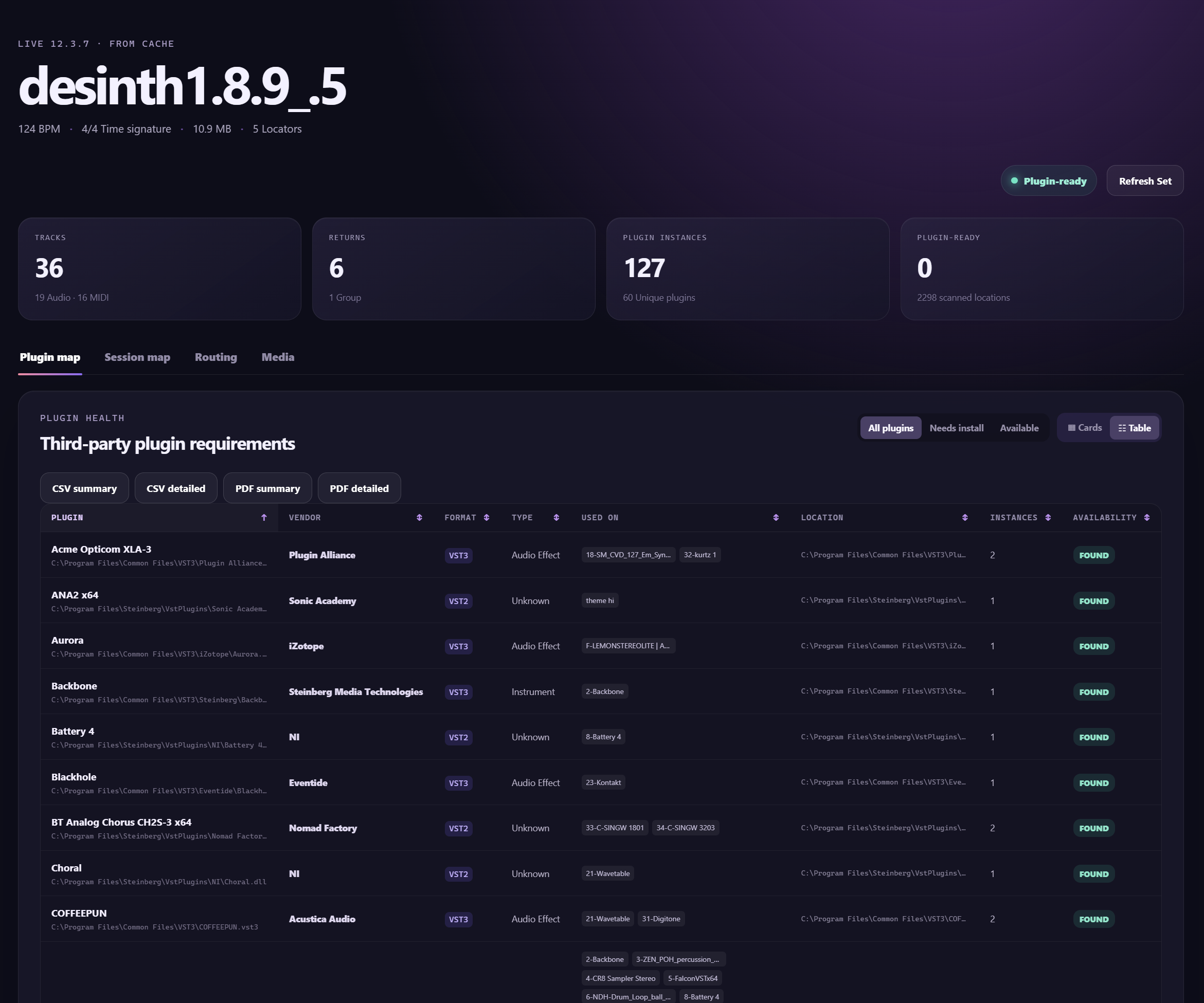
Each third-party plug-in is listed with its name, vendor, format, type, identifier, instance count, tracks, Rack and position. Filter for missing or available plug-ins and jump straight from the map to the track that uses it.
Local plug-in database
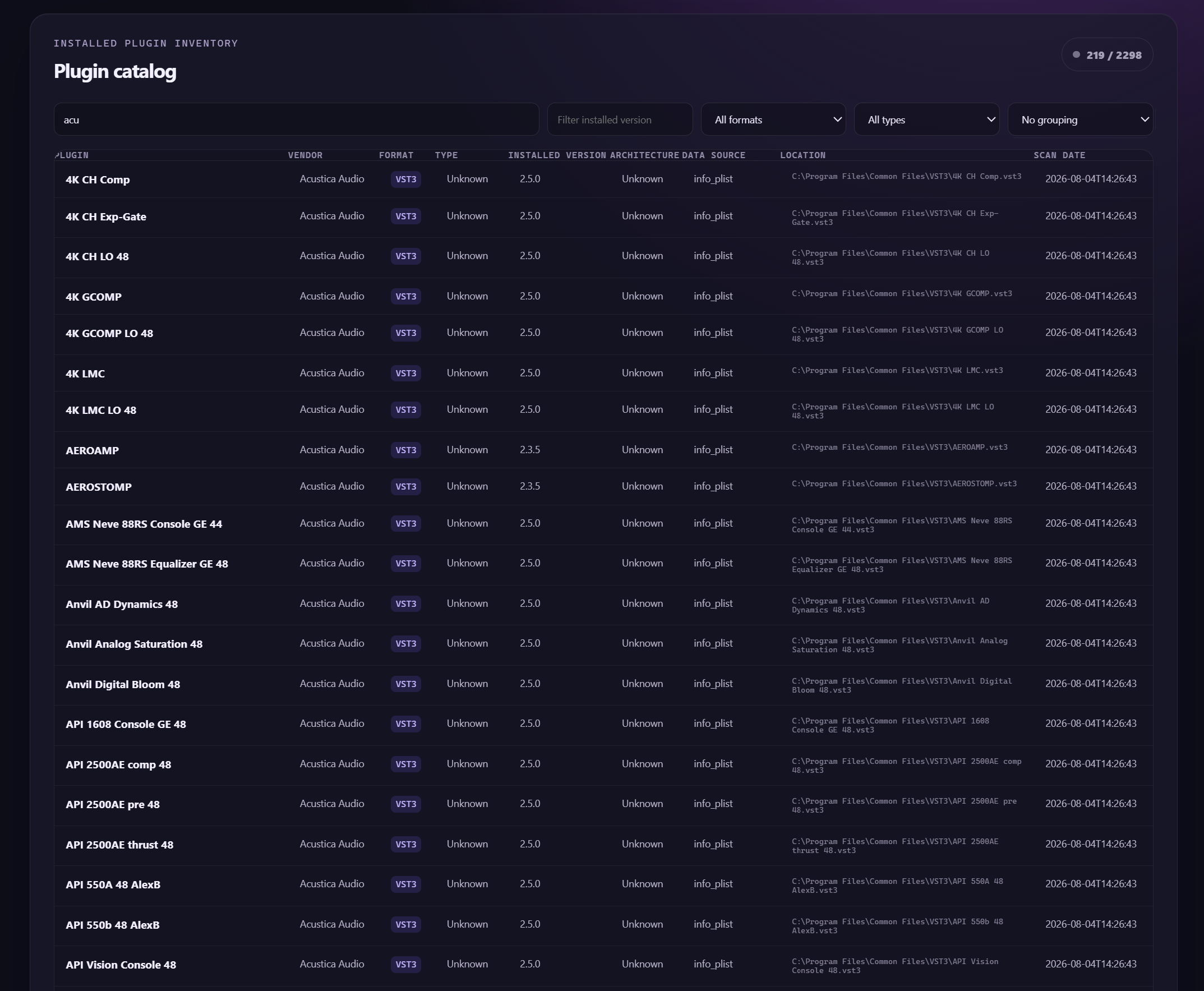
Scan the plug-ins installed on your computer and build a searchable inventory that you can group by name, vendor, format, type, version, architecture or path.
Media Health
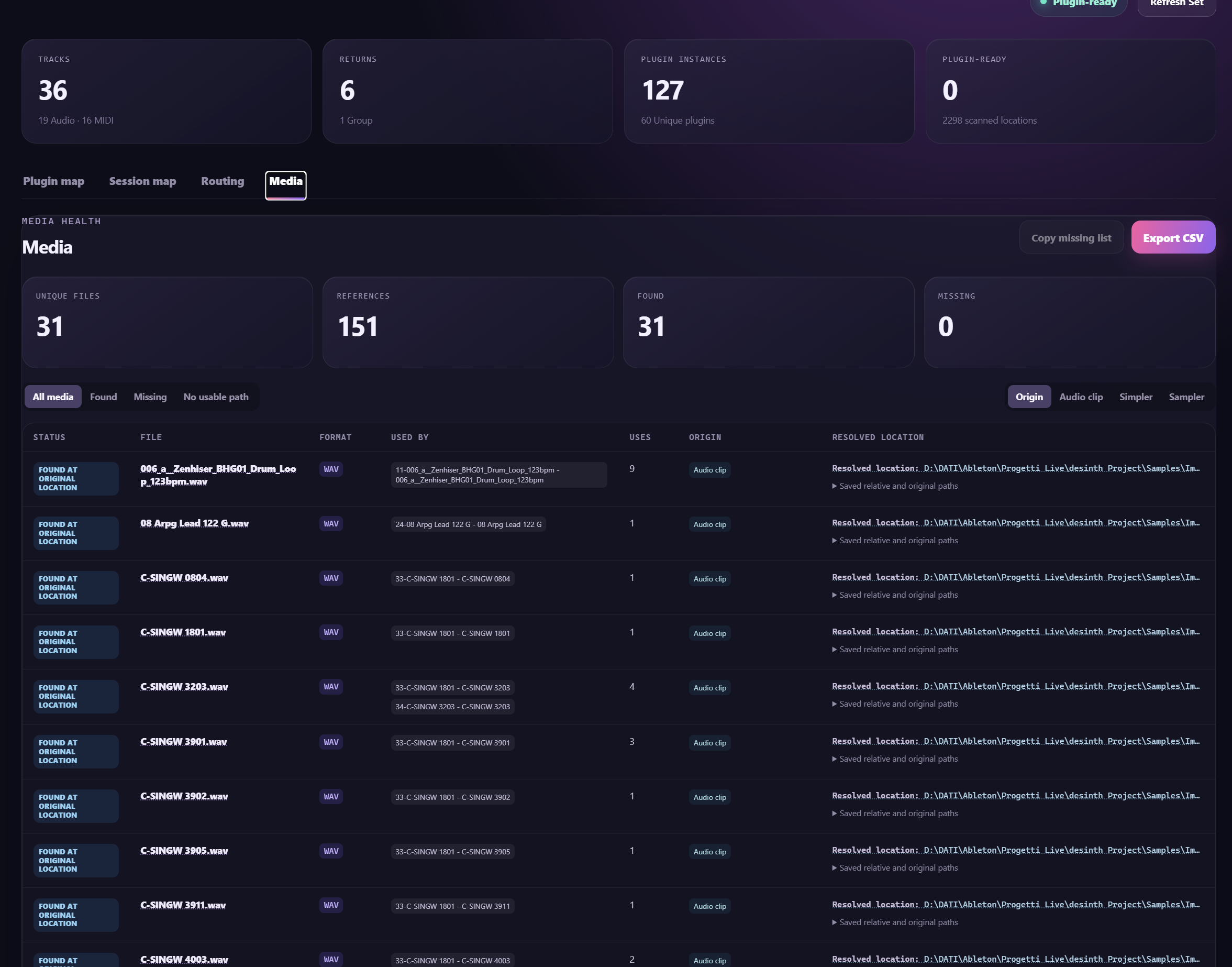
Check the audio references used by clips, Simpler and Sampler/MultiSampler against their saved paths. See what was found, what is missing, where each path comes from, and which tracks or devices use it. Supported files play when you click the media name; open their location with a click, and copy or export the missing-file list.
Session map and nested Racks
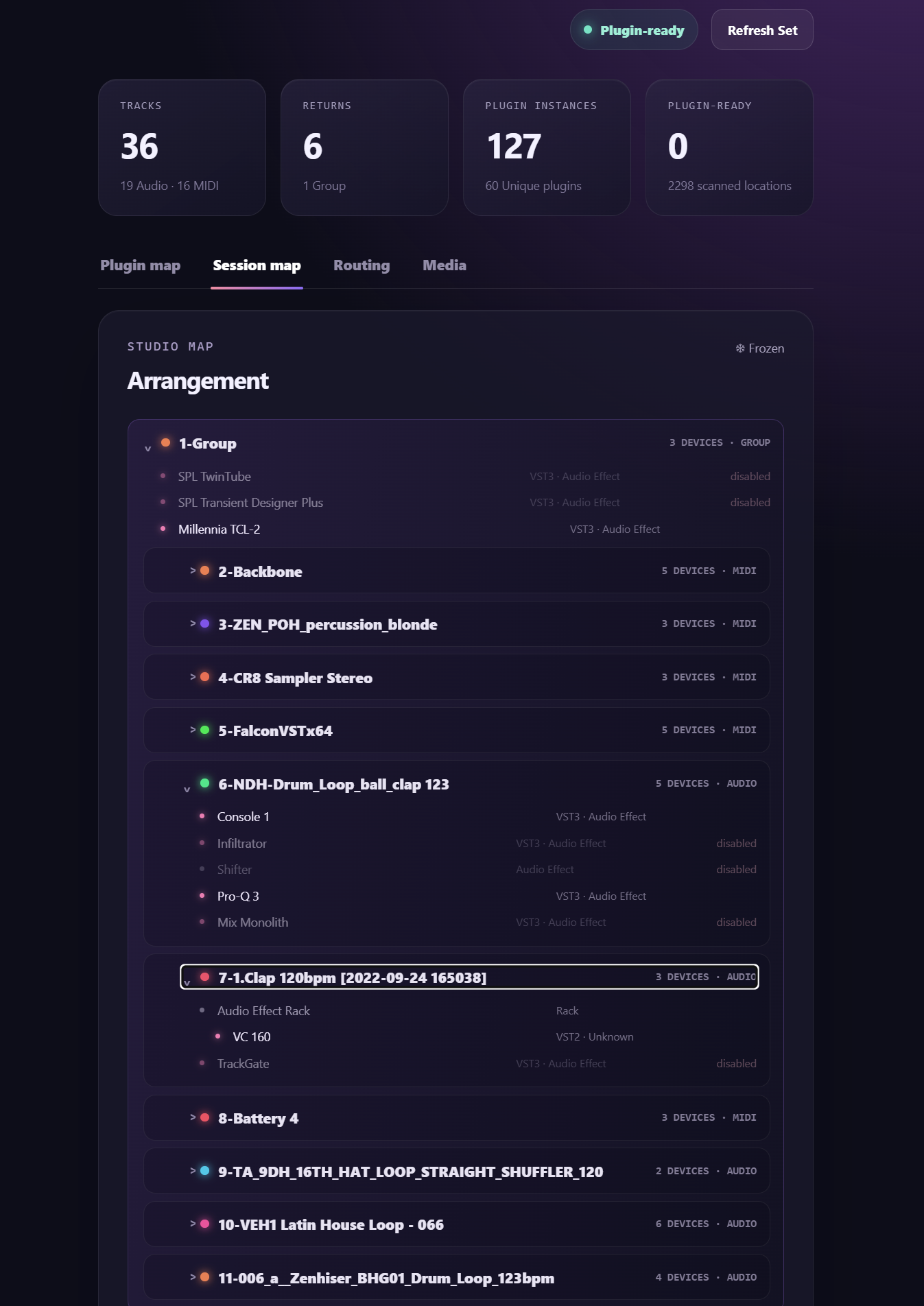
View the track hierarchy, device chains, nested Racks and internal devices. Missing plug-ins are flagged directly in the track chain, with a link back to the Plugin map.
Routing and signal flow
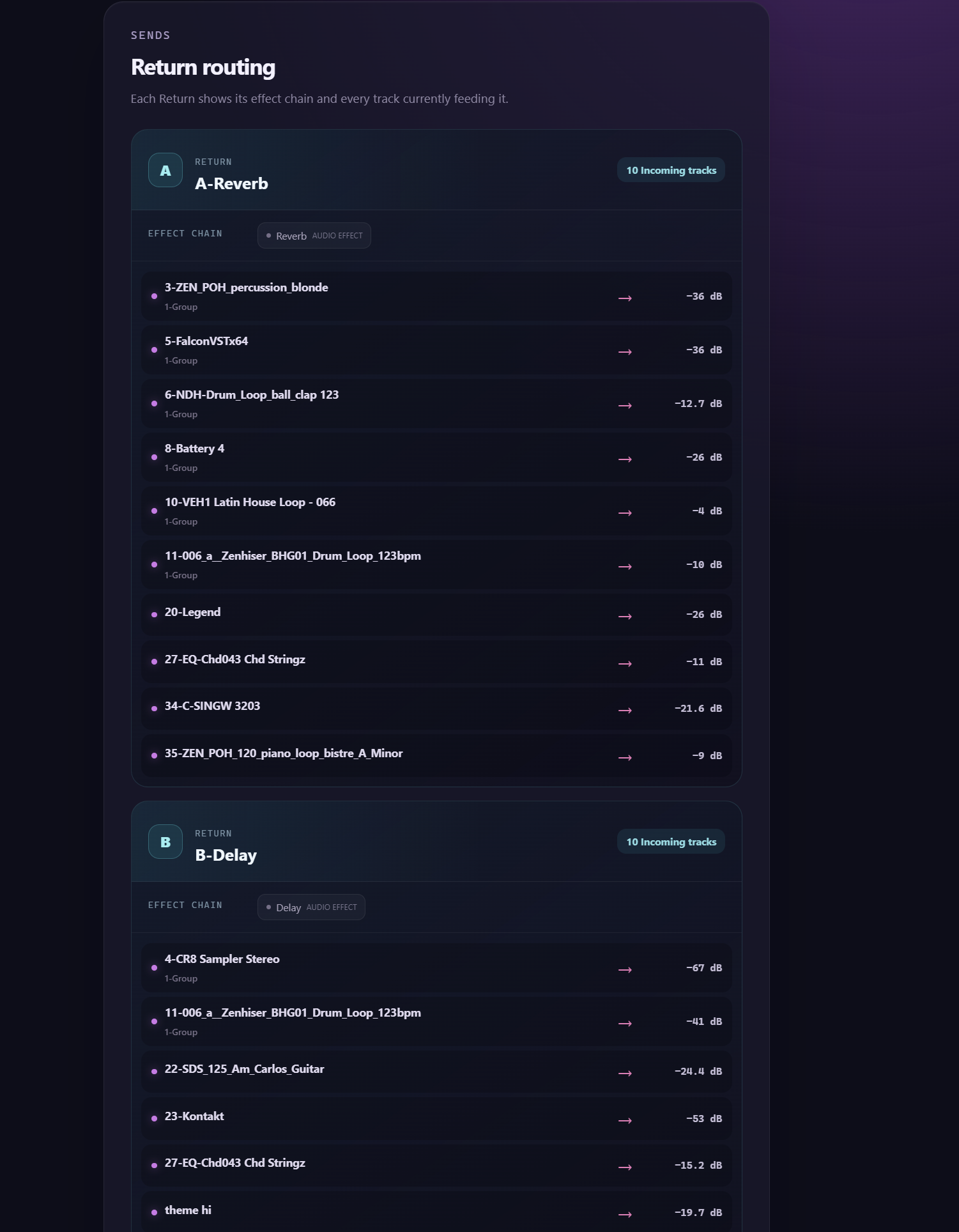
Analyze sends, Returns, effect chains and the tracks feeding each Return, making the signal flow easy to understand without opening Ableton Live.
Professional Set export
Export the list of required plug-ins as CSV or PDF: Summary mode gives one row per plug-in; Detailed mode gives one row for every instance, track, group, Rack and position.
Reports show the Set name, Live version, usage and local availability. They are generated offline without writing anything next to the .als file.
Preferences and troubleshooting
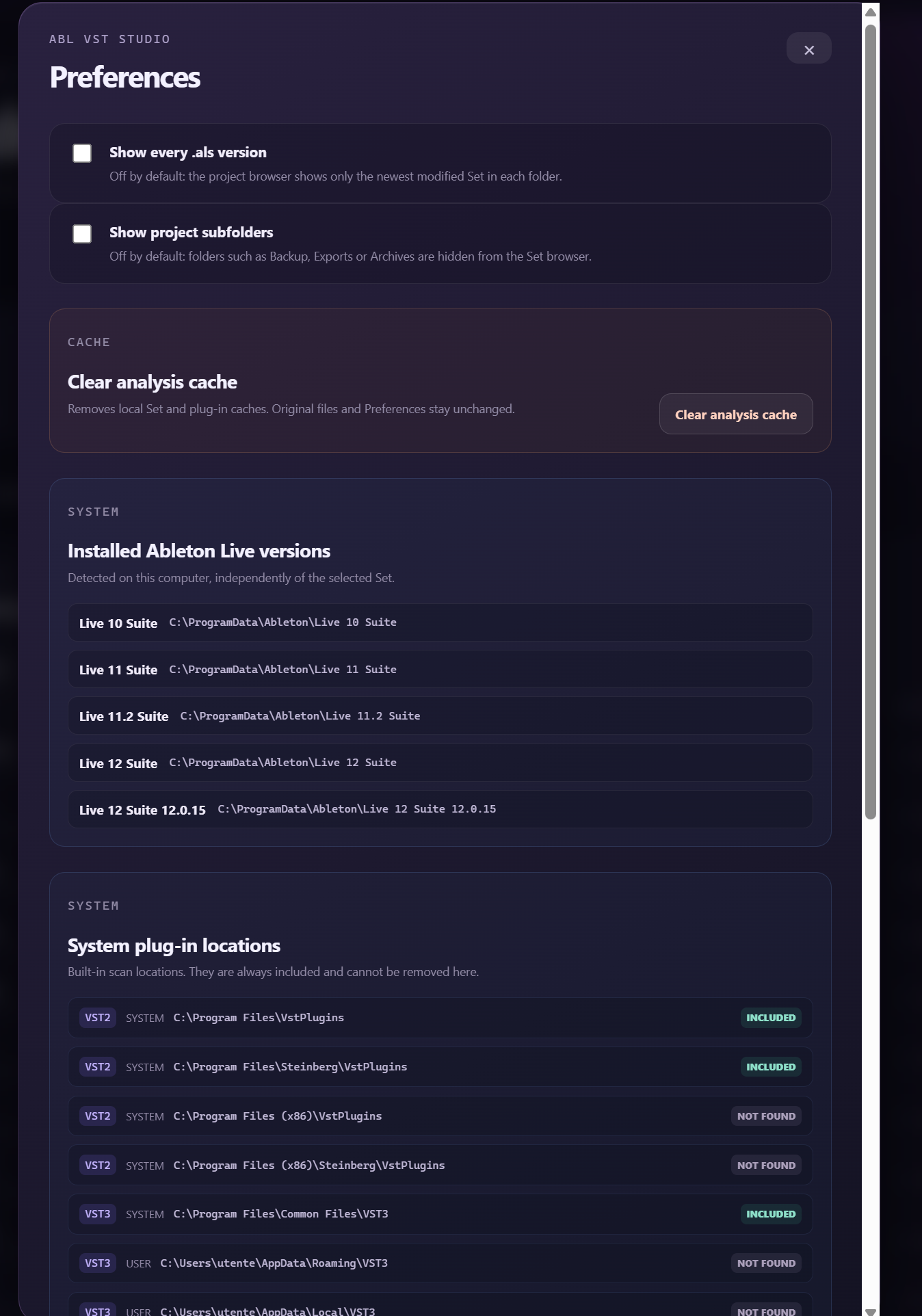
Manage installed Ableton Live versions, standard and custom plug-in folders, visibility of Set versions, language, cache and the application log.
Open with the right Live version
If multiple versions of Ableton Live are installed on your computer, AblVST Studio shows which ones are compatible with the Set, and you can choose which version to use to open the project.
Windows and macOS
On Windows, VST2 and VST3 plug-ins are detected, including VST3 plug-ins in both file and bundle formats. On macOS, Audio Units are supported alongside VST2 and VST3. The macOS app runs in a native Cocoa/WebKit window and does not depend on Chrome.
Offline and private
Set analysis happens entirely on your computer. Original files are never modified, derived data stays in the local cache, and no project or metadata is ever uploaded online.